
Chapter 4 · 4.6
Images, shapes and text boxes
On the Insert tab, you can add all sorts of things to your document: images (1), shapes (2), text boxes (3), decorative text with Text Art (4) and charts (5).

Inserting an image
Click Picture and choose where the image comes from:
- Image from File: a photo or logo from your computer;
- Image from URL: an image from a web address;
- Image from storage: an image that's already in your WebOké Nextcloud.
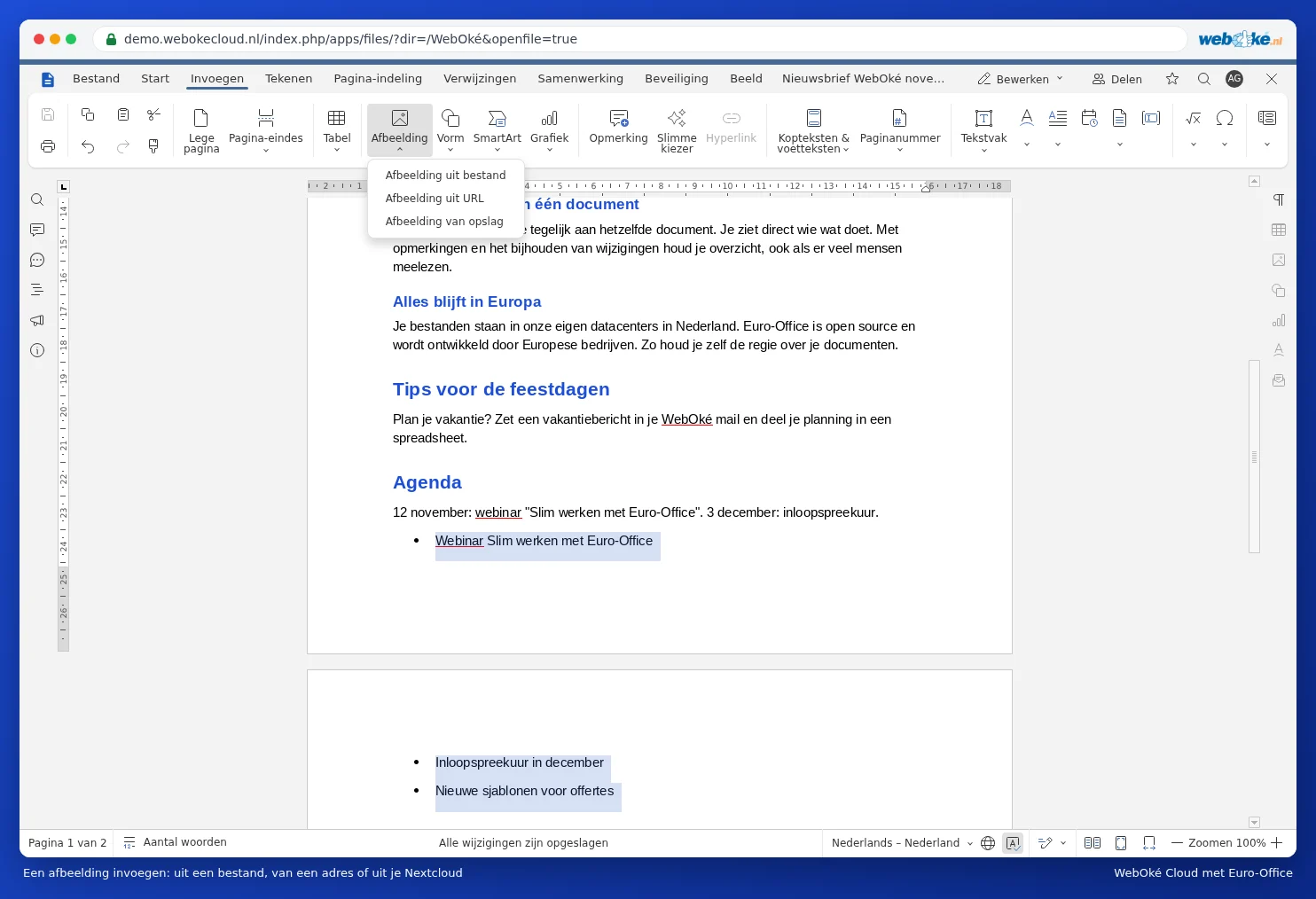
You can also simply drag an image into the document, or copy and paste it.
Adjusting an image
Click the image. Use the dots on the corners to make it bigger or smaller; hold down Shift while doing so to keep the proportions the same. On the right, in the Image settings panel, you can crop, rotate and flip the image.
Use Wrapping on the Layout tab (or Wrapping Style in the right-click menu) to choose how the text wraps around the image. Inline places the image as if it were a letter on the line. With Square, Tight or Through, the text wraps around it, while Top and bottom places the image on its own line. Behind text and In front of text place the image behind or in front of the text.
Shapes and text boxes
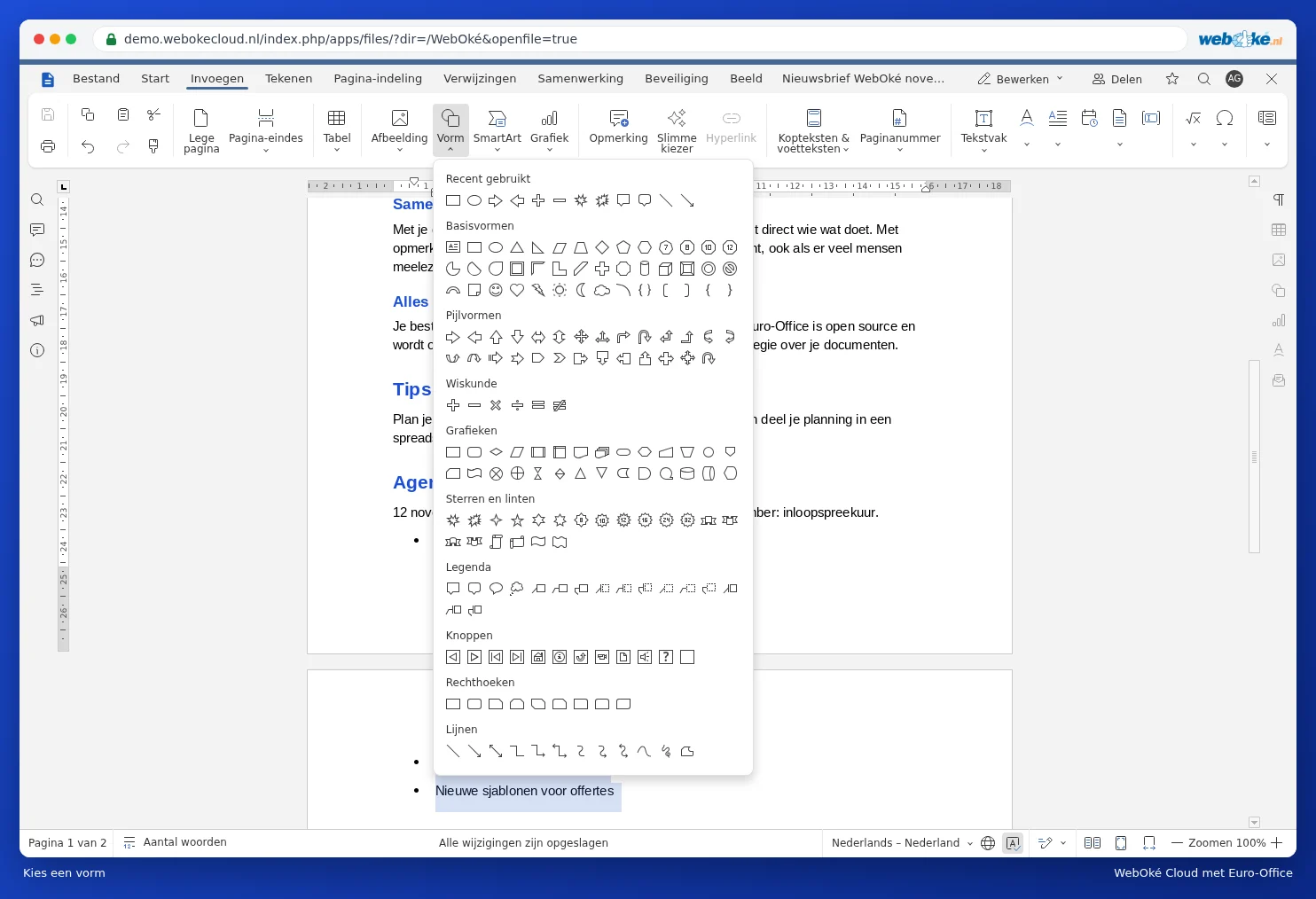
Click Shape and choose a rectangle, arrow, star, speech bubble or another shape. Drag in the document to draw the shape. Double-click the shape to type text in it. In the right-hand panel, choose the fill, border and shadow.
A text box is a box with text that you can place anywhere, separately from the regular text, for example for an eye-catching quote or a box with contact details.
Tip: add an image with a caption underneath via References and then Caption. That way, all your figures get a number automatically.