
Chapter 13 · 13.2
Installing WordPress
Watch it in a short video
You can install WordPress with Installatron in a few minutes. You choose where it goes, your administrator account and a few settings; Installatron takes care of the rest, including the database.
Before you start
- Does your domain already point to WebOké? This isn't needed to install, but as long as your domain still points to your old provider, you won't see your new site in your browser. You can read how to check it anyway in Testing my website before the domain has moved.
- Is the folder empty? If you're installing in the root folder of your domain (public_html), remove any old files first, such as an old index.html. Otherwise it might take priority over WordPress.
- Do you have an SSL certificate? Request one first (see Requesting a free Let's Encrypt certificate). Then you can choose the address with https straight away.
Step 1: choose WordPress
- Open Installatron (see Opening Installatron: what can you install?).
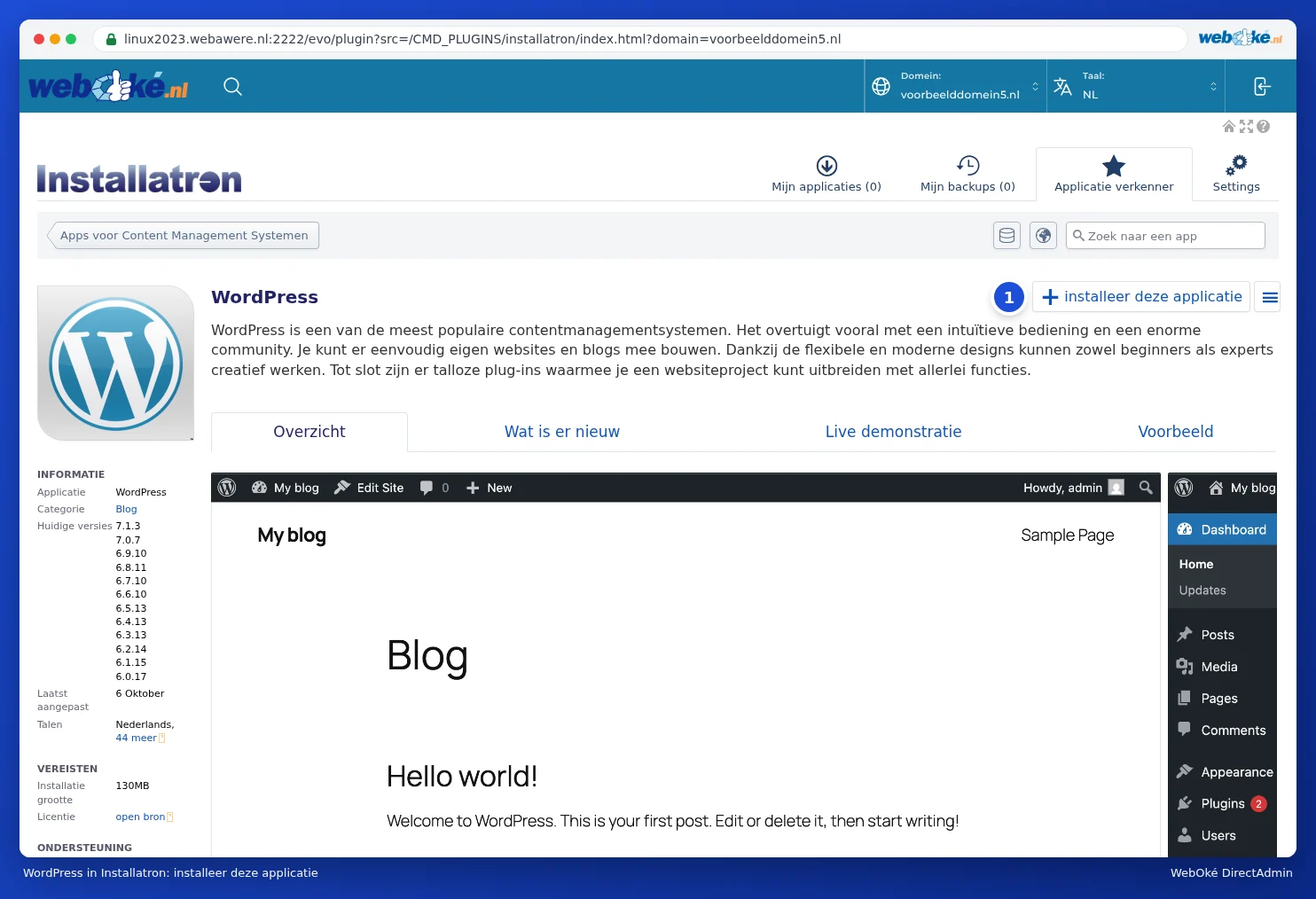
- Type "WordPress" in the search field, or click on WordPress in the Application Browser.
- Click +Install this application (1).
Step 2: the location
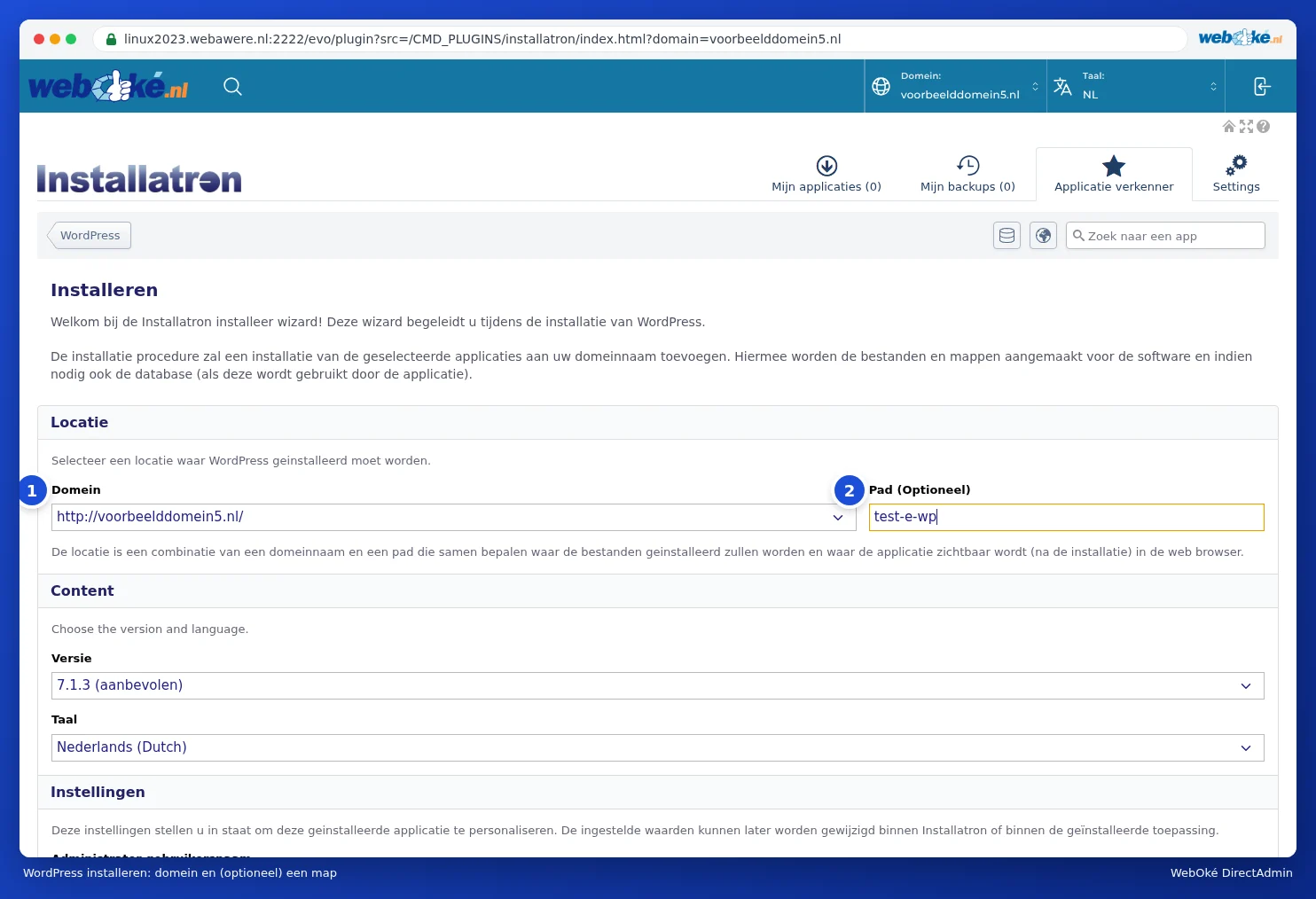
- Choose your domain under Domain (1). Choose https:// if you have a certificate, and choose with or without www, depending on what you want visitors to see in the address bar. Don't choose an address containing ~, such as https://linux2023.webawere.nl/~username: that's a temporary address of the server. Want to view your website before your domain points to WebOké? Use Test your website before moving, which offers two ways to test your site (see Testing my website before the domain has moved).
- Leave Path (Optional) (2) empty to put WordPress on your domain itself (yourdomain.com). If you enter a folder, such as blog, WordPress will be installed at yourdomain.com/blog (see Installing in a subfolder or on a subdomain).
- Under Version, you'll see the newest version marked (recommended). Leave this as it is. Choose the language of your website under Language.
Step 3: your administrator account and your site
Under Settings, fill in:
- Administrator Username: the name you'll use to log in to WordPress later. Installatron fills in a random name. Feel free to choose something else, but preferably not admin: that's the first thing hackers try.
- Administrator Password: Installatron fills in a strong password. Click Show password to see it and save it straight away, or click Generate for a new one.
- Administrator Email: your own email address. WordPress will send things here, such as a link if you forget your password.
- Website Name and Website Tag: the name and short description of your site. You can change these later in WordPress.

Step 4: advanced settings (you can skip this)
Under Advanced, you can choose Automatically manage specific advanced settings for me; Installatron will then use good default settings. If you choose Let me manage these settings, you'll see:
- Database Management: let Installatron automatically create a new database (recommended), or choose an existing one.
- Automated Update: whether WordPress updates itself (see Updates and automatic updates). Default: minor versions and security updates only.
- WordPress Plugin Automated Update and WordPress Theme Automated Update: whether plugins and themes are also updated automatically. On by default.
- Automatic Update Rollback: creates a temporary backup for every automatic update and restores it if the update fails. Leave this on.
- Default Backup Location and Automated Backup: where backups go and whether Installatron makes backups on a schedule (see Making and restoring backups in Installatron).
- Email Notification: which notifications you receive, for example after an automatic update.

Step 5: install
Click +Install at the bottom. After about half a minute, WordPress will be ready. You'll then see the installation under My Applications: with the name of your site, the address, the WordPress version, how much space the files and database take up, the PHP version and the number of backups.

For each installation, you have these buttons:
- Edit (1): the installation's settings, such as automatic updates and backups (see Updates and automatic updates).
- Backup (2): create a backup (see Making and restoring backups in Installatron).
- Copy (3) and Synch: clone the website to another location and sync a copy back with the original (see Cloning and creating a staging environment).
- The button with three lines ≡ (4): more actions, such as deleting (see Deleting an installation).
- login (5): you're logged in to the WordPress admin area straight away, without a password. You can also simply go to yourdomain.com/wp-admin and log in with the username and password from step 3.
If you click the value next to Files or Database, you'll open the folder in File Manager or the database in phpMyAdmin. Under PHP, you can see which PHP version the site runs on; you can read how to change this in Selecting the PHP version (Select PHP version).
Frequently asked questions
I've installed WordPress, but I still see the WebOké reservation page.
In that case, your domain probably doesn't point to your hosting package yet, or there's still an old index.html in public_html. Check the DNS (see Opening DNS Administration and reading the records and My domain isn't working yet after a transfer or change) and check File Manager for an old homepage (see Opening File Manager: the directories in your package). Also refresh the page without cache (Ctrl+F5).
I've lost my WordPress password.
Click Forgot your password? on the WordPress login page. Or set a new password via the Website Manager in My WebOké (see Can I also do this in My WebOké? The Website Manager).
Can I also access WordPress without a password?
Yes. In Installatron, click login under My Applications, or click Log in in the Website Manager in My WebOké. You'll then be logged in to the WordPress admin area straight away.