
Chapter 14 · 14.1
Selecting the PHP version (Select PHP version)
Watch it in a short video
Most websites, such as WordPress, Joomla and web shops, run on PHP. PHP is the programming language in which that software is written. A new version of PHP is released every year, and each version only receives updates for a few years. With WebOké, you choose which PHP version your package uses. You do this in DirectAdmin under Select PHP version.
Where do you find it?
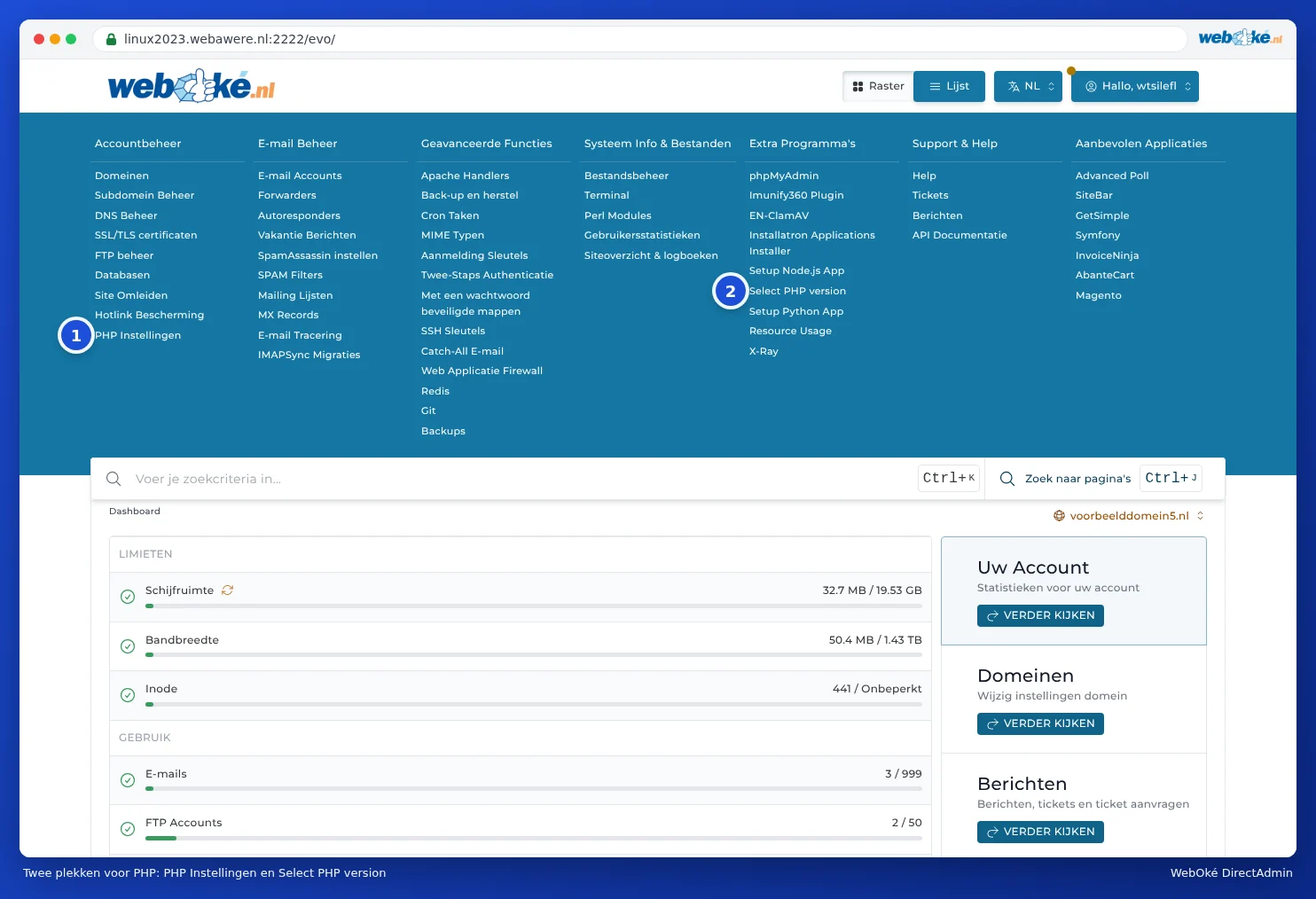
In DirectAdmin, there are two sections with PHP in the name. This often causes confusion:
- Select PHP version (2), under Extra Features. Here you choose the PHP version, extensions and the main options. This is the section you'll almost always need.
- PHP Settings (1), under Account Manager. This lets you override individual settings for one domain. You can read about the difference in PHP Settings in DirectAdmin or Select PHP version: what's the difference?.
Changing the PHP version
- Log in to DirectAdmin (see Signing in via My WebOké).
- Under Extra Features, click Select PHP version. You can also press Ctrl+J and type "PHP" (see Quick search with Ctrl+K and Ctrl+J).
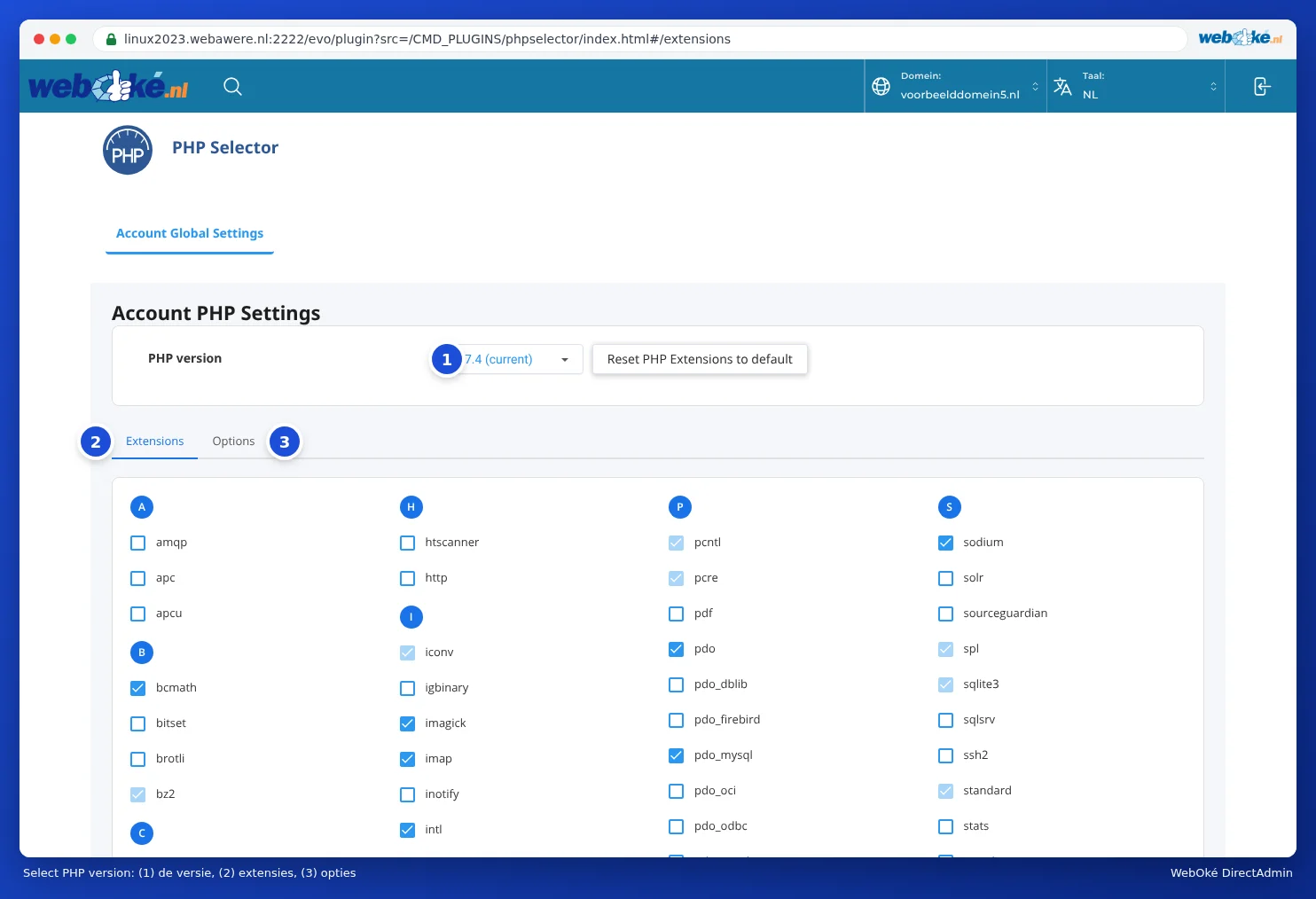
- The PHP Selector screen opens. Next to PHP version (1) you'll see the version you currently use, followed by (current).
- Click the version and choose the version you want from the list.
- The Apply button appears next to the version. Click it. Only then is the new version actually set; if you only choose a version from the list and leave, nothing changes.


The new version is active immediately, for all websites in your package. Open your website straight away and click through a few pages, including the admin area (for example wp-admin). If something doesn't work, switch back to the old version and read Fouten na een PHP-upgrade en het foutlog vinden.
Which version should you choose?
On our servers, you can choose from PHP 5.2 up to and including 8.5. The fact that the old versions are still there doesn't mean they're a sensible choice. Our advice:
- Choose the newest version your website supports. For an up-to-date WordPress site, this is usually PHP 8.3 or 8.4. If in doubt, check the website of your software or theme's developer.
- A newer version is faster and more secure. The makers of PHP no longer release security updates for old versions.
- Does your website still only run on an old version, such as 5.6 or 7.4? Then it's time for an update. Have your web developer update it, or let us do it: see below.
Please note: The version applies to your whole package: all domains and subdomains within it. Do you have an old website that can't be updated, alongside a new one that can? Then you can set one folder to a different version with a rule in .htaccess (see PHP settings per directory and via .htaccess), or give the old site its own package.
Settings belong to a version
You set the extensions and options (see Enabling and disabling PHP extensions and PHP options: upload_max_filesize, memory_limit and max_execution_time) per PHP version. For example, if you've increased memory_limit for PHP 7.4 and you switch to PHP 8.3, the settings for PHP 8.3 will apply there. So after switching, check the Extensions and Options tabs as well.
Can I also do this in Mijn WebOké?
Yes. The AI assistant in Mijn WebOké can change your package's PHP version for you. For example, ask: "Set my website to PHP 8.3". The assistant first shows you what will change (package, current version, new version). Only when you click Approve and carry out does it happen. You can always switch back, also via the assistant.
Does your website break as soon as you increase the PHP version, and would you rather not sort it out yourself? Then we can update it for you with the PHP upgrade: a fixed price, and if it doesn't work, you get your money back.
Frequently asked questions
I can't find php.ini anywhere. Where is it?
You don't need your own php.ini. Everything you'd put in php.ini, you set in Select PHP version on the Options tab (see PHP options: upload_max_filesize, memory_limit and max_execution_time).
How can I see which PHP version my site uses?
In Select PHP version, (current) appears after the current version. In WordPress, you can also see it under Tools, Site Health, Info tab, under Server.
WordPress says my PHP version is outdated.
Choose a newer version as described above. First make a backup (see Backup and Restore: creating your own backup in DirectAdmin) and update WordPress, your theme and your plugins. Old plugins are the most common reason a site breaks on a new version.